Thursday, November 9, 2017

ESP8266 --posting data

Steps

AT+CIPSTART="TCP","WWW.KNRAPACHALLOOR.COM",80
AT+CIPSEND=61
GET http://www.knrapachalloor.com/my.php?dat=9 HTTP/1.0

Wednesday, November 8, 2017

PIP install

Adding  the path of your pip installation to  PATH system variable.

By default, pip is installed to C:\Python27\Scripts\pip (pip now comes bundled with new versions of python),
so the path "C:\Python27\Scripts" needs to be added to your PATH variable.

To add the path of your pip installation to your PATH variable, goto command prompt and type

setx PATH "%PATH%;C:\Python27\Scripts"
 
Restart the command prompt 

Wednesday, July 5, 2017

error - problem connecting to Raspberry Pi 3 with xrdp

sudo apt-get install tightvncserver

will do the task

Tuesday, May 17, 2016

USBPUSH for sending image files to ARM9

Error: No such file or Directory while executing ./usbpush

This error occurs when trying to execute a 32 bit binary from 64 bit OS


To install the 32-bit version, run:


apt-get install libusb-0.1-4:i386

Saturday, January 23, 2016

Raspberry Pi Display on LAPTOP

After a long search , finally I succeeded in getting the Raspberry Pi output on my Lap Top. Thanks to "Instructables"

Steps 

  1. Download DHCP Server for Windows DHCP Download
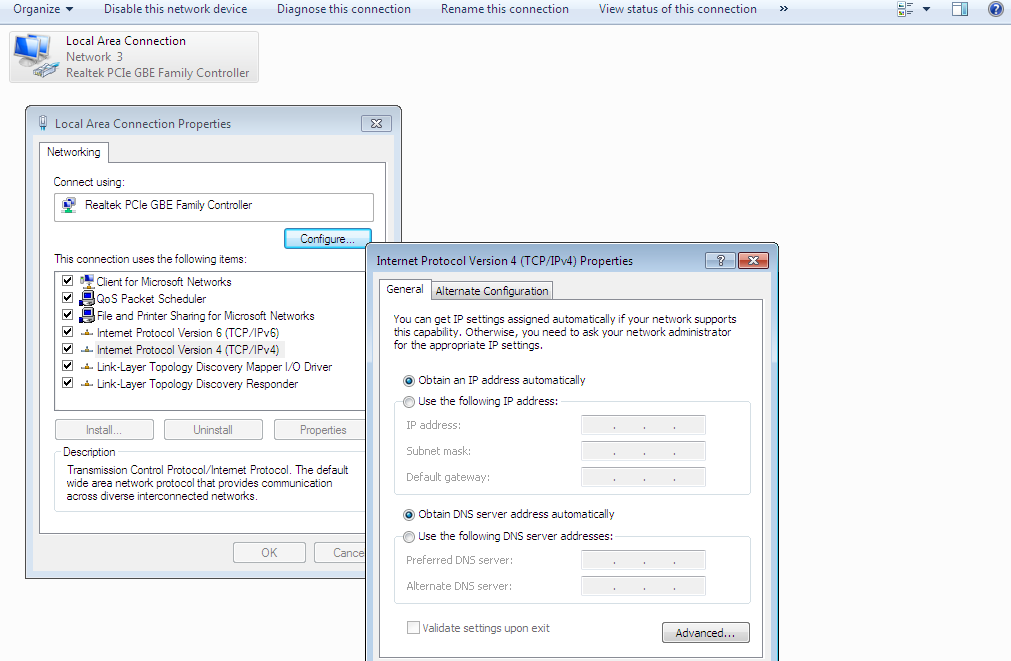
  2. Change the properties of the Ethernet  and set a fixed IP
  3. Open Network & sharing

    b) Click on Change Adapter settings
    Set a fixed IP Eg:192.168.2.2


  4. Run the DHCP Server Wizard (dhcpwiz.exe)
  5. Select the Ethernet adapter from the list 
  6. Run DHCP server on a network card in which DHCP Disabled
  7. Click ->Next->Next->Finish
  8. Run the DHCP server now (dhcpsrv.exe)
  9. Click  Continue as tray  button
  10. Boot and connect the Ethernet cable to Raspberry Pi
  11. A popup will show the IP address assigned by the DHCP server to the Raspberry 
  12. Now you can connect using the Remote desktop connect explained in the last post to see the Raspberry Pi Desktop on your laptop

Friday, November 13, 2015

Raspberry Pi

Setting up SSH in Raspberry Pi

Steps

1)To use SSH, first you need your Pi’s IP address. Boot your Pi to the command line and type:

sudo ifconfig 

You can see "inet addr "  192.168.x.x

2)Download putty to Your PC
3)Open putty and type the IP address of the Raspberry and enter
4)PUTTY will open a terminal window which will prompt you for your username and password. of raspi

User Name: pi
Password:Raspberry

Remote Desktop for Your Raspberry Pi

1) 1)On your Raspberry Pi’s command line, (or with SSH), type: 

sudo apt-get install xrdp

2) Open Remote Desktop Client on your PC (Its installed with Windows)

Start-All Programs-Accessories-Remote Desktop Connection

3) Enter the IP address when prompted.A xrdp window will pop up, prompting you for your username and password. 

Monday, July 1, 2013

L293D: Extra cover


IC L293D , is the Motor Driver IC, which is usually linked to Robotics Applications. Even if you tend to use this guy, few basic questions still arouse in the minds of budding Hobbyists; Like Why 2 supply pins on the IC, How much voltage can be given to the IC, Should I short all the Ground pins of the IC ??????

Here, I'll be explaining the Pin description of L293D and not the specifications or other technical details. You can refer datasheet for that. L293D datasheet click here.

To start with, any Microcontroller development Board works with a Max. of 5V, with a few hundreds of mA current. In case of ARDUINO Duemilanov:
DC Current per I/O: 40mA
DC Current for VCC & GND: 200mA

Is this current sufficient enough to drive a everyday 12V, 200RPM DC motor ?
No.

So what ?
Use a Motor Driver.

Does it help ?
Yes. It converts low current to high, sufficient to drive a motor.


Pin Conections (Important: Even pro's tend to make mistake here)

Pin 1 & 9:
Pin 1 is Enable 1. Used for enabling working of Motor1 (IN1, IN2, OUT1, OUT2)
Pin 2 is Enable 2. Used for enabling working of Motor2 (IN3, IN4, OUT3, OUT4)

Pin 2, 7 & 10, 15:
Inputs for Motor.
If pin 2 is +ve, pin 7 is -ve then motor Rotates in one direction. If Pin 2 is -ve, pin 7 is +ve then motor rotates in reverse direction.

Same explanation valid for Pin 10, 15.

Pin 16:
This is the Logic supply voltage for L293D. It should not exceed 7V (recommended rating). But can go Max. upto 36V.

Pin 8:
This is the Output supply voltage. We can give upto 36V (Max), depending on our output voltage requirement.

So, this explains why there are two supply pins on the IC. Pin 16 is usually provided for logic inputs to minimize the device power dissipation.

Pin 4, 5, 12, 13:
These pins are ground pins. They form an on-board Heatsink. Usually these pins are to be shorted  & connected to ground. But, I insist, take a multimeter and test the connectivity of these pins. THEY ARE INTERNALLY SHORTED. We need not short them again, it'll only increase the wire-do of your circuit. 

Please remember that Pin 8 & 16 are totally different. "Pin 8 is supply for left side, Pin 16 is supply for right side" is WRONG.